
Broken Link Checker
Free Broken Link Checker for Chrome
Open the panel on any page, and TheUrlInsights checks every link and resource on it from your browser. Each one gets a result, a colour on the page, and the details you need to fix it.
On every plan, Free included.
What is a broken link (and why it hurts SEO and user experience)
A broken link points to an address that no longer works. The server may answer 404 Not Found or 410 Gone, fail with a server error, or not answer at all.
For visitors, it's a dead end. They click, land on an error page, and often leave. For search engines, a broken link wastes a crawl and stops the link passing value to the page it was meant for.
Links break for ordinary reasons. A page is renamed or deleted, a typo slips into an address, or another site you link to closes. Images, scripts and stylesheets break the same way, and a missing one can spoil the whole page.
How to check broken links on any page
The check runs on the page you're viewing, in a few seconds for most pages.
-
Step 1 – Open the page in Chrome
Go to the page you want to check: your own site, a client's, or a staging copy. Sign in to the extension once, with a free account.
-
Step 2 – Run the Links tab
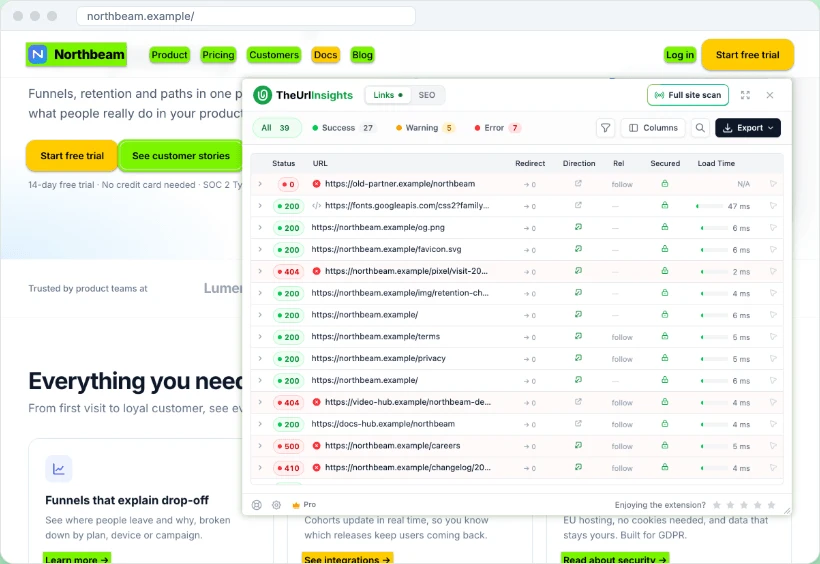
Click the TheUrlInsights icon in the toolbar. The panel opens on the Links tab, and links fill the table as they're checked.
-
Step 3 – Filter, inspect and fix
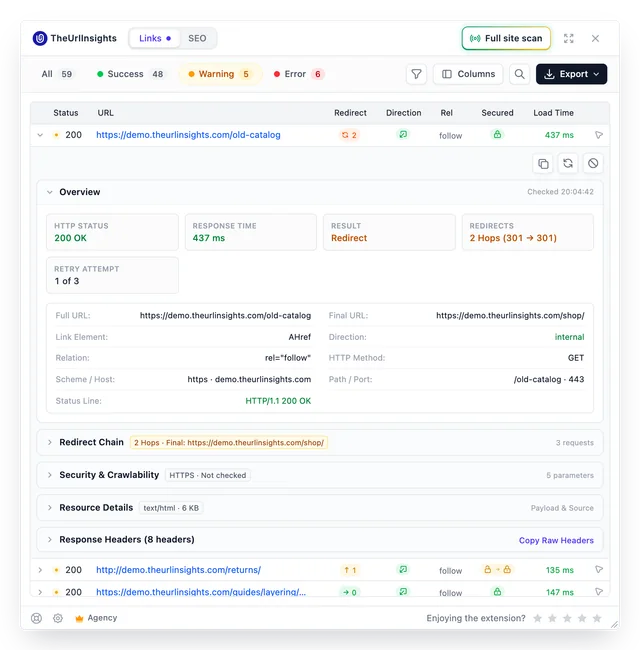
Choose the Error pill, then Internal, so your own links come first. Open a row for its details, fix the link on your site, then use Recheck URL.
What the checker detects
Every link gets one result: the first rule that fits. It collects 52 kinds of link,
not only <a> tags: images, scripts, stylesheets, media, iframes and
the addresses in social tags.
-
404 and 410 errors
Both show as Client Error, with the code: 404 Not Found when a page is missing, 410 Gone when it was removed on purpose. Other 4xx answers land here too.
-
Server errors (5xx)
A Server Error is a 5xx answer, often a problem on that server for a while. Timeouts, unknown hosts, refused connections and certificate errors are errors too.
-
Soft 404s
A Possible Soft 404 is an internal page that answers 200 OK but reads like a "not found" page. A deep link sent to the homepage counts too. It's a prompt to look, not a verdict.
-
Missing anchors and mixed content
Missing Anchor means the
#sectionin a link isn't on the target page. Blocked: Mixed Content is anhttp:resource on anhttps:page, which Chrome blocks.
| Result | Level | What it means | Why it may appear | What to check next |
|---|---|---|---|---|
| Client Error | Error | The server answered with a 4xx code, such as 404 Not Found or 410 Gone. | The page was moved or deleted, or the address has a typo. | Point the link at the right address, or remove it. If the page moved, a redirect on that site helps every other link to it too. |
| Server Error | Error | The server answered with a 5xx code, or with an answer none of the rules above fits. | A problem on that server, often a temporary one. | Recheck it later. If it keeps failing, tell whoever runs that site. |
| Timed Out, Host Not Found, Connection Refused, Certificate Error | Error | Nothing usable came back. | The host is down or slow, the domain doesn't exist, or its certificate isn't valid. | Open the link yourself and check the domain's spelling. The time limit is 15 seconds by default, and you can change it in Settings. |
| Missing Anchor | Error |
The page loads, but the #anchor in the link isn't on it.
|
The heading or section it pointed to was renamed or removed. |
Link to an anchor that exists, or drop the #… part.
|
| Blocked: Mixed Content | Error |
An http: resource on an https: page, which Chrome
blocks.
|
An old address that was never updated to HTTPS. |
Change it to https: if that host supports it.
|
| Possible Soft 404 | Warning | The page answers 200 OK but reads like a "not found" page. | A removed page that shows an error message without a 404 status. | Open it. If it really is gone, update the link. The site itself should answer 404 or redirect. |
| Anchor Not in HTML | Warning |
The #anchor is there, but only once scripts have run.
|
The page builds that part with JavaScript. | Fine for visitors. Crawlers that don't run scripts won't find it. |
| Redirect | Warning | The link works, but only after one or more redirects. | The address changed and the link wasn't updated. | Update the link to its final address. The Redirect Checker shows each hop. |
| Auth Required | Warning | A 401 or 407, a login challenge, or a redirect to a sign-in page. | Checks don't send your cookies, so pages behind a login look like this. | Not broken if it opens while you're signed in. |
| Request Blocked | Warning | HTTP 999, a 403 from Cloudflare or Akamai, or an error from the site's network edge. | Bot protection refused an automated request. | Open it in a tab. If many are blocked, slow the checks down in Settings. |
| Protected Asset | Warning | A font file answered 403. | Font hosts often refuse requests that don't come from their own pages. | Usually fine if the font shows on the page. |
| Success | Success | A 2xx answer straight away. | Nothing went wrong. | Nothing to do. |
A link that works only after a redirect is a warning, not an error. The redirect checker shows each hop. A missing image shows here as an error, and the alt text checker covers images that load but have no description.
Highlighting links on the page by status
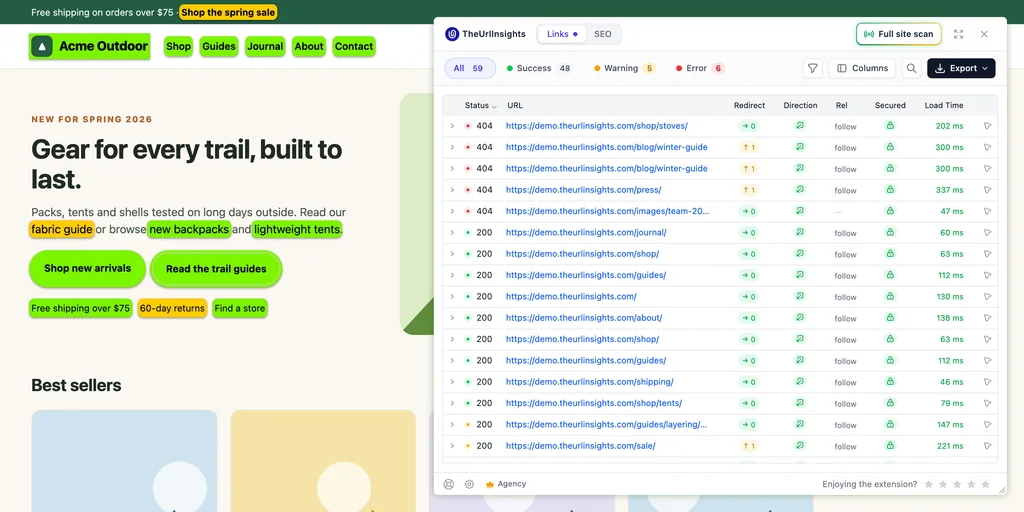
As each link is checked, it's coloured on the page itself. Green means it works, yellow a warning, and pink-red an error. Grey means it's blocked or can't be checked.
So you can see where a broken link sits: in the menu, the footer or a paragraph. Closing the panel removes every colour, and the page goes back to normal.
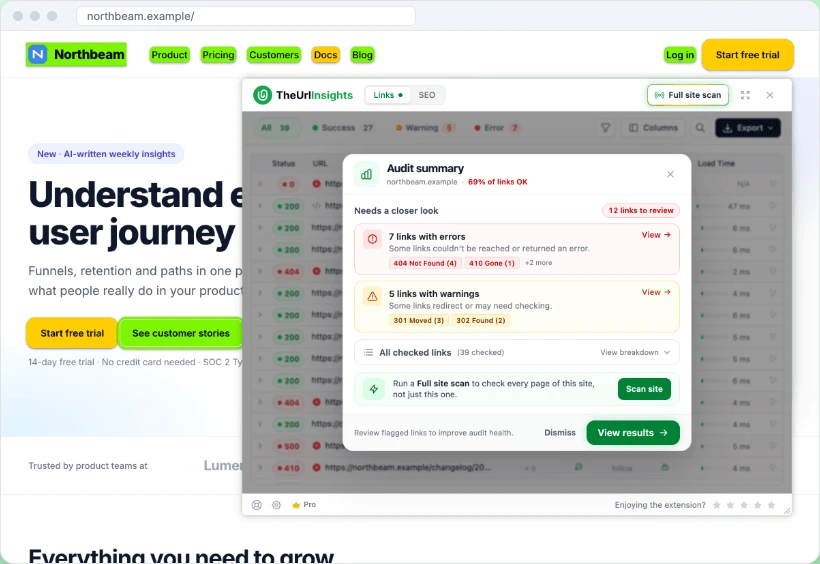
When the check ends, a summary gives the number of errors and warnings, each with a shortcut to those rows. A switch in the Filter menu also outlines nofollow, ugc and sponsored links.
Export results to CSV or JSON
Export saves the rows showing as a CSV file, or copies them as JSON to paste elsewhere. Filters and search apply, so you can export only the errors.
Each row has the address, its status code, the link type, direction and rel. It also has the redirect count and chain, the response time and headers, and when it was checked.
Both are on every plan. A CSV of errors is often the quickest way to hand fixes to whoever edits the page.
Check your whole site with Full Site Scan
The Links tab checks one page at a time. To check every page, scan every page of your site instead. Full Site Scan goes through the site page by page and checks every link it finds.
Its report shows which pages have the most issues, what to fix first, and a health score, with PDF and CSV exports. The SEO tab beside Links runs the on-page SEO audit on the page you're viewing.
Common questions
Is the broken link checker free?
Yes. Every link and SEO check in the panel is on every plan, Free included, with CSV and JSON export. You need a free account to sign in. The plans differ in the Full Site Scan; compare plans.
Does it check links behind a login?
Not as a signed-in visitor. Checks don't send your browser's cookies, so a page that needs a login shows as Auth Required. That isn't broken: open it while signed in to confirm.
Does it check images and scripts too?
Yes. It checks 52 kinds of link, from images, scripts and stylesheets to video, iframes and the addresses in Open Graph tags. You can switch each kind off in Settings.
How is it different from a full crawler?
It checks the page you're viewing, in your browser, in seconds. A crawler follows links from page to page across a site; that's what Full Site Scan does. If you use Check My Links today, see how it compares with Check My Links.
Full Site Scan
Check the page you're on, then the whole site
Every link and SEO check in the panel is on every plan, Free included. New accounts start with a 14-day Pro trial.