
Full Site Scan
Scan Your Entire Website for Broken Links
Full Site Scan goes through your site page by page and checks every link and resource it finds. The report shows which pages have issues, what to fix first, and a health score, with PDF and CSV exports.
3 scans a month on Free, up to 100 pages each. Compare plans
How Full Site Scan works (same-domain crawl, page limits, stopping conditions)
Open it from Full site scan in the panel's header, or right-click a page and choose TheUrlInsights → Audit Full Site. A new tab opens with the site filled in.
| Field | What it does |
|---|---|
| Site address |
Where the scan starts. It must start with http:// or
https://.
|
| Pages to crawl |
Same domain (the default; www. and the bare
domain count as one), Same root domain (every subdomain) or
Same folder. Links to other sites are checked, but the scan
doesn't go inside them.
|
| Page limit | The scan stops after this many pages: from 10 to 10,000, or up to 100 on Free. Expect about 10–15 minutes per 1,000 pages. |
| Skip pages closed to robots | Off by default. When it's on, pages that the site's robots.txt closes to Googlebot aren't crawled. robots.txt is the file that tells crawlers where they may go. |
The scan starts at the address you give and follows the links it finds on each
page. By default it stays on the same domain:
www. and the bare domain count as one. Links to other sites are
checked, but not crawled.
It stops when it has read every page it found, or when it reaches the page limit. It also stops if you close its tab. If the computer runs low on memory, it pauses with Continue, so Chrome doesn't close the tab.
A single page is quicker to check in the panel: the broken link checker gives every link a result in seconds.
Coming from a one-page link checker? See how it compares with Check My Links, which checks one page at a time.
A scan is one step of a full audit. For the rest, read how to audit a website step by step.
Reading the report
The report fills in while the scan runs, and becomes a results page when it ends.
-
Health score
A score out of 100, with a word: Healthy, Needs attention or Poor. A sentence sums it up, such as "9 broken links on 3 of 48 pages. Fix those first."
-
Most affected pages
The pages with the most issues, each with its counts of broken links, redirects and other issues. Click one for its results, link by link.
-
Issues by type
The issues grouped by kind: broken links, missing images, broken scripts and styles, server errors, timeouts and redirect problems. Fix these first puts the worst groups first. For redirects, the redirect checker shows each hop.
-
Coverage
Pages scanned out of pages found, and whether the limit was reached. Internal and external links, and what robots.txt or your rules skipped.
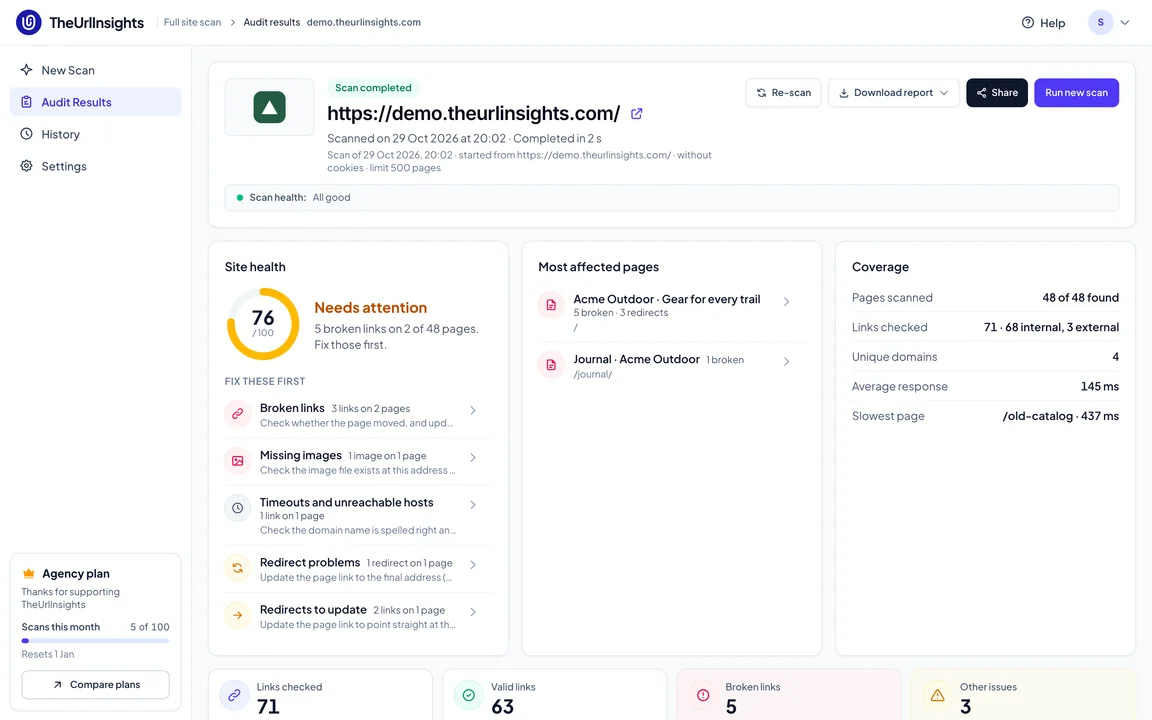
Example: scanning a 48-page site
The figures come from the demo scan in the illustrations on this page.
-
Set it up
The scan starts at
demo.theurlinsights.com, with Same domain and a 100-page limit. Two rules leave out the pages under/cartand/account. -
Let it run
It reads 48 pages and checks 286 links. The limit isn't reached, so Coverage shows all 48 pages scanned.
-
Read the summary
Site health is 76 out of 100, Needs attention: "9 broken links on 3 of 48 pages. Fix those first." 257 links are valid, and 20 have other issues.
-
Work down Fix these first
The broken links come first, on three pages:
/shophas 4,/journal3 and/guides/hiking-basics2. Each link's details give its how-to-fix steps. -
Then the redirects
/abouthas 3 links that redirect. Point each one straight at its final address. -
Send it, then scan again
Download the Summary report (PDF) to share, or the Full report on Pro and up. After the fixes, use Re-scan to run the same scan again, and compare.
Exclusion rules (/cart, /account, /wp-admin, ?filter=)
Open Advanced exclude to skip what you don't need, up to 20 rules. Common ones add in one click. An excluded link is never requested: it's listed as Excluded, with the rule that matched.
| Rule | What it does | Example | Plans |
|---|---|---|---|
| URL contains | Skips every link whose address contains the text, ignoring case. |
/login, ?filter=
|
Every plan |
| Skip a folder | Skips the folder and every page in it, on this site. |
/blog/archive/
|
Every plan |
| Only scan a folder | Reads only pages in the folder. Links elsewhere are still checked, and the start page is always read. | /docs/ |
Pro and up |
| Pattern (advanced) |
* stands for anything.
|
*.pdf, /products/*/reviews
|
Pro and up |
Scan history
History keeps your last 5 scans in this browser, on every plan. Each one keeps its problem links: broken, warning and redirected, up to 2,000. Working links aren't kept.
Re-scan runs the same scan again, so you can compare after your fixes. On Agency, a scan linked to a client's site also saves its summary to that site, for audits for client sites.
Plan limits table (Free / Pro / Agency / Lifetime)
A scan counts when it starts, and the count starts again on the 1st of each month.
| Free | Pro | Agency | Lifetime Pro | |
|---|---|---|---|---|
| Scans a month | 3 | 30 | 100 | 30 |
| Pages a scan | Up to 100 | Up to 10,000 | Up to 10,000 | Up to 10,000 |
| Summary report (PDF) and CSV | ✓ | ✓ | ✓ | ✓ |
| Full report (PDF) | No | ✓ | ✓ | ✓ |
| Only scan a folder and Pattern rules | No | ✓ | ✓ | ✓ |
| History | Last 5 scans | Last 5 scans | Last 5 scans | Last 5 scans |
Prices are on the pricing page.
Download a sample PDF report
See what a report looks like before you scan: the Summary report (PDF) of the 48-page demo scan above. It has the overview, site health, key findings, what to fix first, and sample broken links.
PDFs are made in your browser from the scan, and nothing is uploaded. The Summary report is on every plan; the Full report, with every issue, is on Pro and up.
Every plan can also export the link list as CSV, with the list's filters, search and sort, and copy a short summary to share.
Common questions
How many pages can I scan?
Up to 100 pages a scan on Free, and up to 10,000 on Pro, Agency and Lifetime Pro. Expect about 10–15 minutes per 1,000 pages. On-page SEO is checked one page at a time in the on-page SEO audit, not by the scan.
Why did my scan stop early?
Most often it reached its page limit; Coverage says so. It also stops when its tab is closed, and pauses when the computer is low on memory. A site that blocks checks slows it down, and it says why.
Can I schedule scans?
Not today. Each scan starts when you choose Start scan or Re-scan, and runs in a Chrome tab on your computer.
For Agencies
Check the page you're on, then the whole site
Every link and SEO check in the panel is on every plan, Free included. New accounts start with a 14-day Pro trial.