
Canonical Tag Checker
Canonical Tag Checker
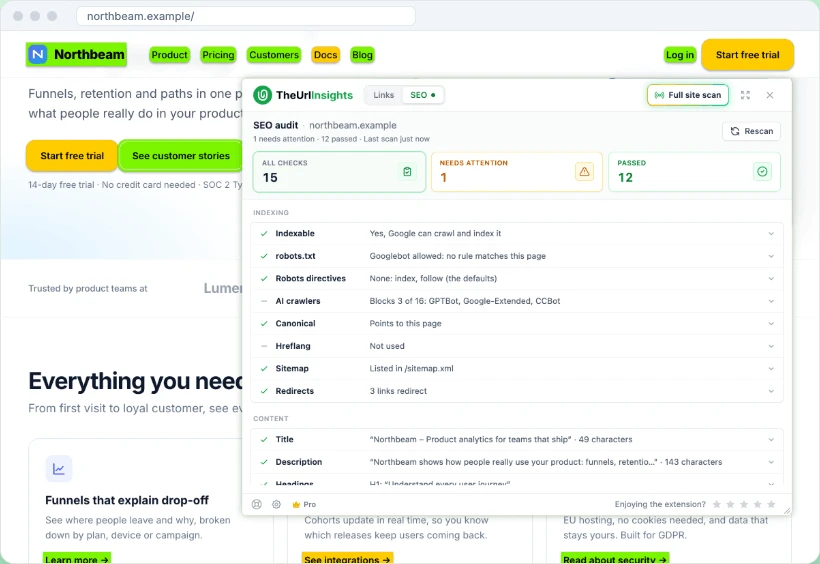
Open the SEO tab on any page to see where its canonical points, and whether that address works. The toolbar icon also turns orange as a page loads when its canonical needs a look.
On every plan, Free included.
What a canonical tag does
Many pages can be reached at more than one address: with and without
www, with tracking parameters, or sorted in different ways. To a search
engine, these look like copies of one page.
The canonical tag names the address you want treated as the main version. It sits in
the page's <head>, as
<link rel="canonical" href="https://www.example.com/shoes/">.
You set one when the same content has several addresses. Common cases are tracking
parameters such as ?utm_source=, sorted or filtered lists, and an
article published on two sites.
Google treats it as a strong hint, not a command, and may choose another address. It weighs redirects and canonicals more than sitemaps. That's why a canonical should agree with your redirects and your sitemap.
<!-- On https://www.example.com/shoes/?sort=price -->
<link rel="canonical" href="https://www.example.com/shoes/" />
How to check a page's canonical in one click
-
Open the page
Go to the page in Chrome, signed in to the extension. Within a second, the toolbar icon turns green, orange or red.
-
Open the SEO tab
Click the icon, then SEO. The Canonical check shows where the canonical points, such as "Points to this page".
-
Read the target's checks
The canonical's address is fetched too. The check reports its status, any redirect, and whether it's noindex or blocked by robots.txt.
-
Fix and rescan
Change the tag in your site's templates or SEO plugin, then choose Rescan.
| Finding | Level | What to do |
|---|---|---|
| Points to this page | Success | Nothing: a self-referencing canonical is what most pages want. |
| Points to another URL | Info | Fine when it's meant, such as a copy pointing to the original. Otherwise, point it at this page. |
| Missing, or more than one | Warning |
Add one <link rel="canonical"> in the
<head>, and remove any extras.
|
| Target fails, redirects, is noindex or is blocked by robots.txt | Error | Point the canonical at a final address that loads and may be indexed. |
| The target names another canonical | Warning | A canonical chain: point straight at the last address. |
| Points to HTTP from an HTTPS page | Warning |
Use the https: address.
|
| Changed by scripts | Warning | The live page names a different canonical than the HTML the server sent. Crawlers that don't run scripts see the server's one. |
| On another host | Info | Fine for a deliberate cross-domain canonical. Check that it's meant. |
Common canonical mistakes
-
Canonical points to a redirect or 404
The page asks to be represented by an address that sends crawlers elsewhere, or doesn't load. Both are errors. Point it at the final address; the redirect checker shows where a redirect ends.
-
www / non-www and http / https mismatches
An
http:canonical on an HTTPS page is flagged. The check treatswww.and the bare domain as one host, so compare that part by eye: it shows the exact address. -
Canonical on paginated and filtered pages
Page 2 of a list is a different page, so it usually names itself. Filtered and sorted copies usually point to the unfiltered page. Don't point every page of a series at page 1.
-
Conflicting canonical in HTML and HTTP header
A server can also send a canonical in an HTTP
Linkheader, often for PDFs. The check reads the tag in the page's HTML only, so check headers with your browser's developer tools.
What the orange toolbar icon means
The icon runs a quick check on each page as it loads, while you're signed in. Orange means "Possible indexing problem". For the canonical, that's when the page names another address, or the canonical is multiple, fails, redirects, is noindex or is blocked.

Automatic indexing checks
Always on
Checks each page as it loads
TheUrlInsights runs a quick indexing check as each page loads, and colours its toolbar icon to match. Hover over the icon to see why.


-
Not checked yet
While a page is loading, on browser pages such as
chrome://, or while you're signed out. -
No indexing problem found
Search engines can crawl and index it. It loads without your cookies, and robots.txt (the file that tells crawlers where they may go) allows it. Its canonical, the address it names as its main version, points to itself or is missing.
-
Possible indexing problem
The canonical points elsewhere or fails, robots.txt doesn't load, or directives conflict.
-
Can't be indexed
noindexin a meta tag or header, blocked by robots.txt, or an error status without your cookies.
Red is stronger: the page itself can't be indexed. The noindex checker covers those signals. All of the canonical findings are part of the on-page SEO audit.
Common questions
Should every page have a self-referencing canonical?
It's a good default. It tells search engines which address you prefer, even when the page is reached with parameters. Copies of a page should point to the original instead.
Why does Google show a different canonical from mine?
A canonical is a hint. Google may choose another address when your redirects, sitemap or internal links point elsewhere. URL Inspection in Search Console shows which one it chose.
Can a canonical point to another domain?
Yes, for content published on more than one site. The check notes it as "on another host", so you can confirm it's meant.
Redirect Checker
Check the page you're on, then the whole site
Every link and SEO check in the panel is on every plan, Free included. New accounts start with a 14-day Pro trial.