
Noindex Checker
Noindex & Indexability Checker
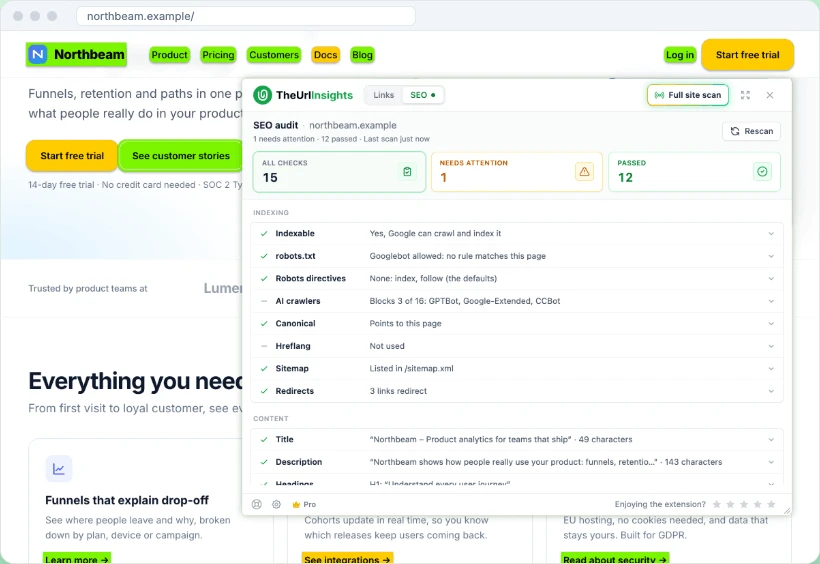
As each page loads, the toolbar icon turns green, orange or red from a quick indexing check. Open the SEO tab for each signal: noindex, the X-Robots-Tag header, robots.txt, the canonical and the sitemap.
On every plan, Free included.
Why pages accidentally become non-indexable
A page is indexable when search engines may reach it and add it to their results. Most pages that drop out of search weren't removed on purpose.
Common causes are ordinary. A staging site's noindex stays on after launch. A CMS setting such as "Discourage search engines" is left ticked. A robots.txt rule meant for one folder blocks a whole section. Or a page works only when you're signed in.
The first sign is usually a page that stops getting search visits. In Google Search Console, it may be listed as "Excluded by noindex tag" or "Blocked by robots.txt".
Each of these is quick to fix, once you know which signal is the cause. That's what the checks below are for.
What the checker looks at
The Indexable check reads four signals, as Googlebot would. robots.txt is the file that tells crawlers which parts of a site they may visit.
-
Meta robots noindex
A
<meta name="robots" content="noindex">tag asks search engines not to list the page. Agooglebotmeta tag counts too. Conflicting or unknown directives are warnings. -
X-Robots-Tag header
The same directives can come in the server's
X-Robots-TagHTTP header, often for PDFs. The check reads the header as well as the tag, so a noindex in either is found. -
robots.txt disallow rules
The check reads robots.txt as Googlebot, plus the search bots you choose. A
Disallowrule that covers the page is an error, and the line that matched is shown. -
Error status without cookies
The page is fetched without your cookies, as a crawler would. If it only works with your browser's session, crawlers can't see it either: "This URL fails without your browser's session".
Toolbar icon colours explained
While you're signed in, the icon checks each page about a second after it loads, and when you switch tabs. Hover it for the headline and the reasons.

Automatic indexing checks
Always on
Checks each page as it loads
TheUrlInsights runs a quick indexing check as each page loads, and colours its toolbar icon to match. Hover over the icon to see why.


-
Not checked yet
While a page is loading, on browser pages such as
chrome://, or while you're signed out. -
No indexing problem found
Search engines can crawl and index it. It loads without your cookies, and robots.txt (the file that tells crawlers where they may go) allows it. Its canonical, the address it names as its main version, points to itself or is missing.
-
Possible indexing problem
The canonical points elsewhere or fails, robots.txt doesn't load, or directives conflict.
-
Can't be indexed
noindexin a meta tag or header, blocked by robots.txt, or an error status without your cookies.
| Icon | Headline | Set by |
|---|---|---|
| Red | Can't be indexed | Blocked by robots.txt; noindex; the URL fails without your browser's session. |
| Orange | Possible indexing problem | robots.txt doesn't load; the page names another canonical; the canonical is multiple, fails, redirects, is noindex or is blocked; conflicting or expired directives. |
| Green | No indexing problem found | None of the above. |
Orange is often about the canonical, the address a page names as its main version. The canonical tag checker explains those findings.
Fixing an indexing problem – step by step
-
Find the signal
Hover the red or orange icon, or open the SEO tab's Indexable check. It names the cause: robots.txt, noindex, or a page that fails without your session.
-
Remove an unwanted noindex
Delete the tag from the page template, or switch off the setting in your CMS or SEO plugin. Check the server's headers for an
X-Robots-Tagtoo. -
Unblock robots.txt, carefully
Change the rule that matched so it no longer covers the page. A blocked page can't have its noindex read, so unblock it first if the page should leave search.
-
Rescan, then ask Google
Choose Rescan in the SEO tab. When the icon is green, use URL Inspection in Google Search Console and request indexing.
What a green icon doesn't tell you
- Indexable isn't the same as indexed. Green means no checked signal blocks indexing. Whether the page is in the index is up to the search engine.
- AI crawlers are a separate question. The SEO tab can also show how robots.txt treats AI crawlers, judged by your own policy.
Common questions
Does robots.txt disallow stop indexing?
Not on its own. It stops crawling, so a search engine can't read the page, but the address can still be listed from links. Use a noindex tag or header for pages that must stay out.
How long until Google re-indexes after removing noindex?
It varies: from days to weeks, depending on how often Google crawls the page. Requesting indexing in Search Console's URL Inspection can speed it up.
Which search bots does it check?
Googlebot always, plus the ones you choose in Settings: Googlebot-Image, Googlebot-News, Googlebot-Video, Bingbot, Yahoo, DuckDuckBot or YandexBot. These checks are part of the on-page SEO audit.
AI Crawler Checker
Check the page you're on, then the whole site
Every link and SEO check in the panel is on every plan, Free included. New accounts start with a 14-day Pro trial.