
Before you start
Open the page in Chrome, signed out if you can, so you see what a visitor sees. Note
its address exactly, including www and the trailing slash.
1. Does the page answer, and where does it land?
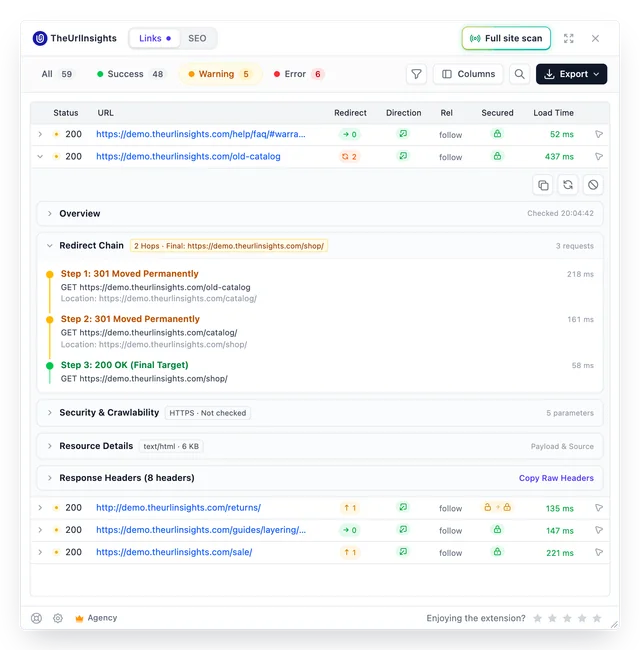
The first check is the page's own status. It should answer 200 OK at the address you expect, not redirect somewhere else first. If the address you linked to redirects, update your links to the final address.
2. Can search engines index it?
Check robots.txt, any noindex in the page or its
X-Robots-Tag header, and whether the page loads without your cookies. In
TheUrlInsights, the toolbar icon turns red or orange when one of these needs a look.

3. Is the canonical right?
The canonical should usually point to the page itself. If it names another address, that address should load, without redirecting, and be indexable. The canonical tag checker explains each result.
4. Are the title, description and headings clear?
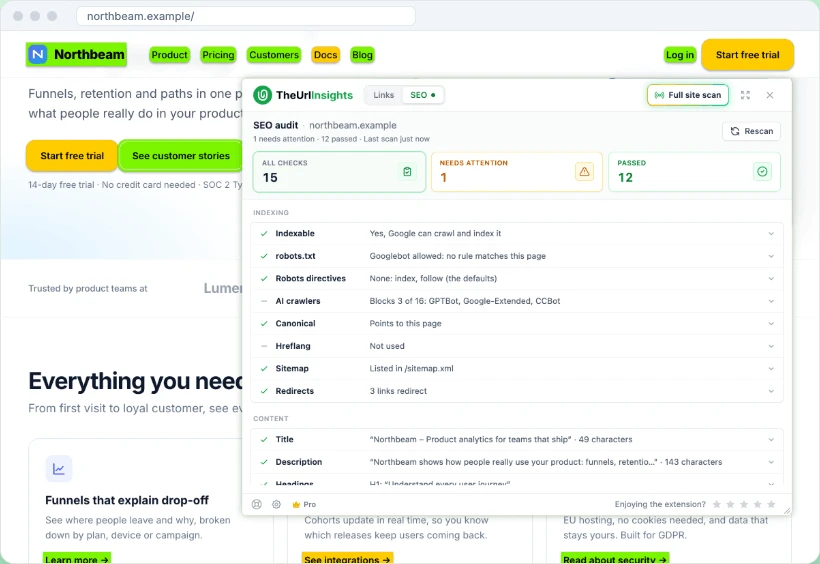
One unique title and description that say what the page is about, and one main heading. The SEO tab shows each with its length. For more on writing them, see how to check SEO meta tags.
5. Do the links and resources work?
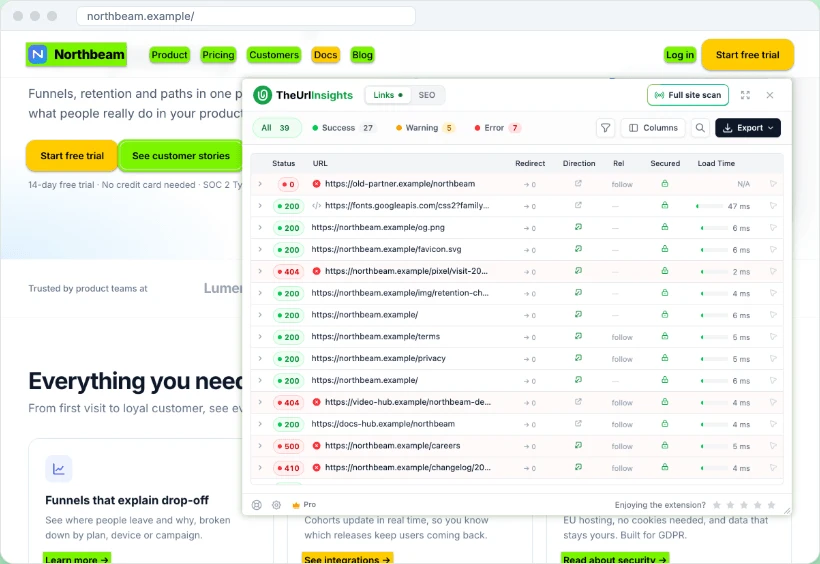
Check every link, image, script and stylesheet. Treat warnings with care: a link that needs a login, or a site that blocks automated checks, isn't necessarily broken. Open those yourself.
6. Images and structured data
Images that carry meaning need alt text. Structured data should parse; for whether it qualifies for rich results, use Google's Rich Results Test.
7. Confirm in Search Console
An extension shows the live page. Google's URL Inspection shows what Google last indexed, and which canonical Google chose, which can differ from yours. Its live test shows the page as Google fetches it now, though passing it doesn't guarantee indexing (Search Console Help).
When to check more than one page
If the same problem appears on many pages, such as a broken link in the menu, a site scan finds every page it's on. The 15 checks above are all part of the on-page SEO audit; for the whole site, read how to audit a website step by step.